

When shopping on Amazon US and forwarding with Buy&Ship, we recommend completing the Amazon account settings below in advance for your Buy&Ship US warehouse address. This ensures Amazon only delivers during business hours, helping to prevent couriers from leaving packages outside the door outside business hours — so your order arrives safely at our US warehouse and gets forwarded to you smoothly.
💡 Quick summary:
・Already set up: If you’ve completed the “delivery instructions for business hours” setup in Amazon’s “Account settings” by following the guide below, it will be applied automatically at checkout — no need to fill it in again.
・Haven’t set it up yet: Just click “Add delivery instructions” at the top of the checkout page and follow Steps 4–6 below to fill in the same delivery instructions.
Steps to Set Delivery Within the US Warehouse’s Business Hours
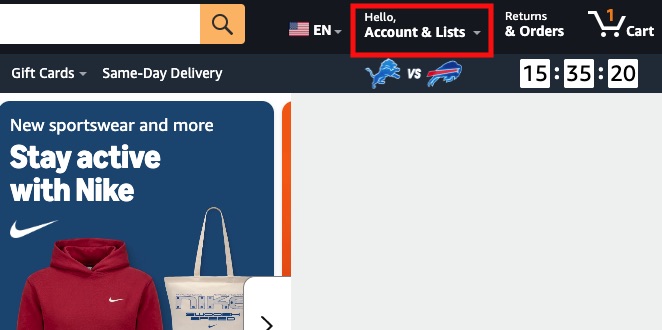
Step 1: Go to and log into Amazon US, then click Account & Lists in the top right corner
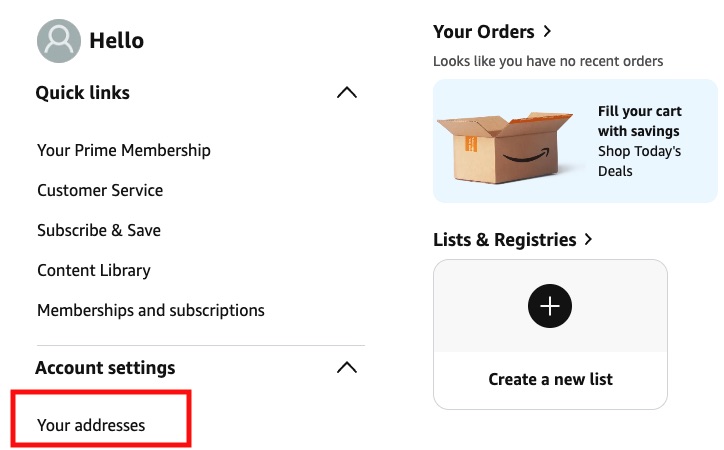
Step 2: Click Account settings, then click Your addresses
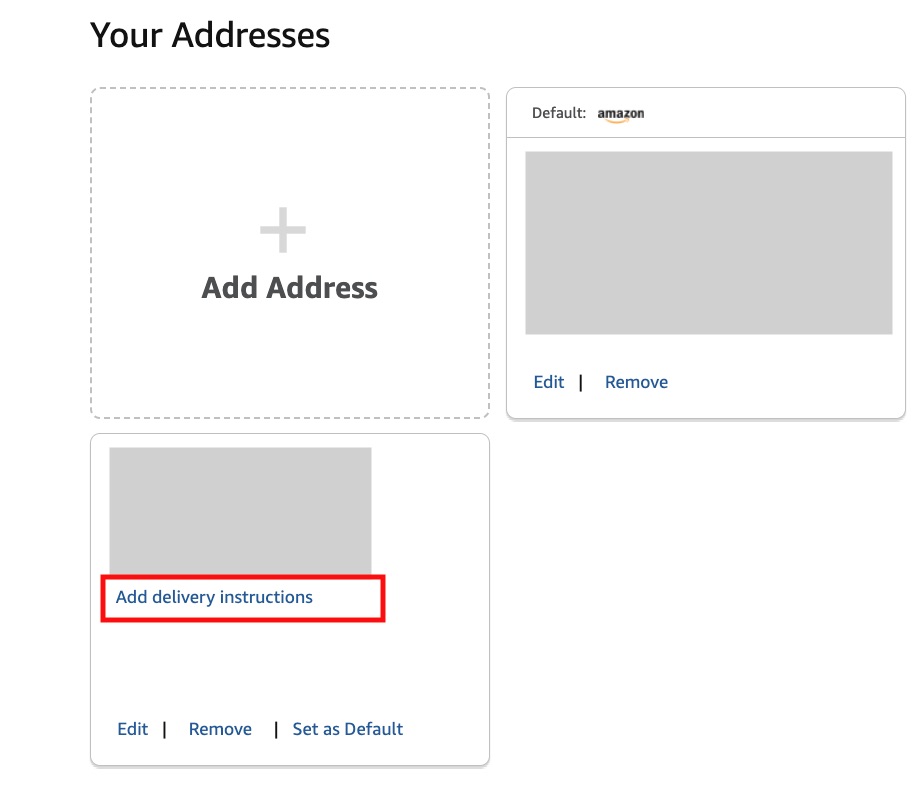
Step 3: Go to Your addresses, enter your Amazon / eBay warehouse address, then click Add delivery instructions
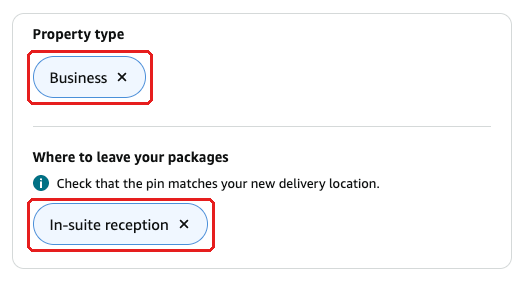
Step 4: After clicking Add delivery instructions, a settings panel will pop up. Fill in the top card as follows:
- Property type: select “Business”
- Where to leave your packages: select “In-suite reception”
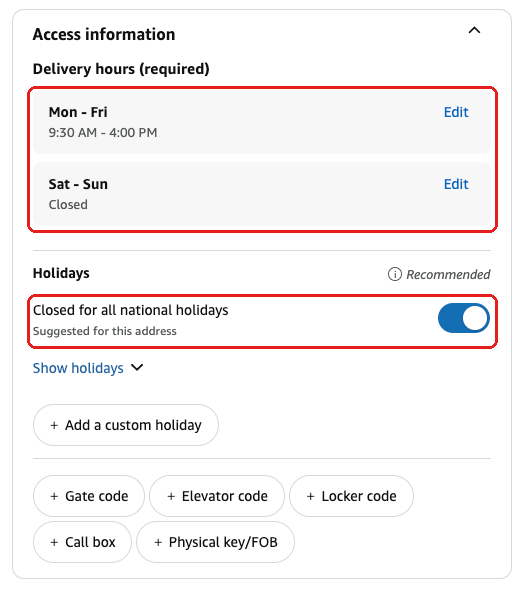
Step 5: Scroll down to “Access information” and set the delivery hours:
- Delivery hours: set Mon – Fri to “9:30 AM – 4:00 PM” and Sat – Sun to “Closed” (click Edit to change them)
- Holidays: turn on “Closed for all national holidays”
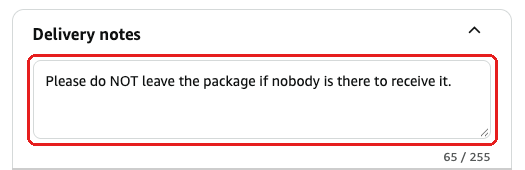
Step 6: Paste the following into the “Delivery notes” box: Please do NOT leave the package if nobody is there to receive it.
Finally, click “Save instructions” to save your changes, and you’re all set to shop with confidence.
Checkout: Making Sure Your Package Arrives Safely
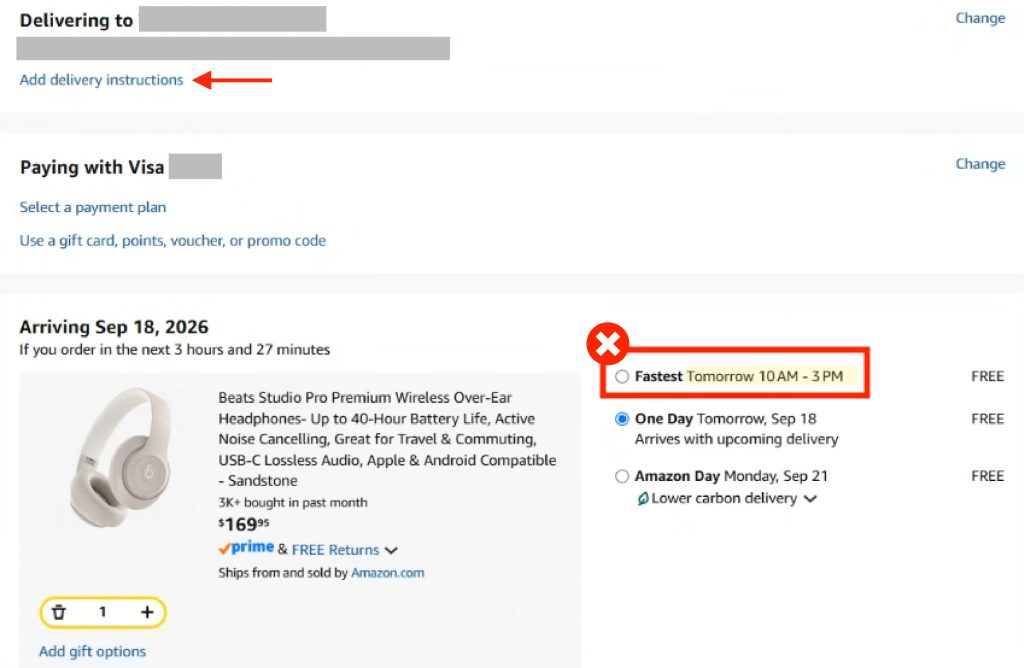
The “Add delivery instructions” option will still appear at the top of the checkout page — if you’ve already completed the steps above, there’s no need to fill it in again.
If a specific delivery time-slot option appears in a red box further down the page (such as one labeled “Fastest” with a set time), we recommend choosing the option outside the red box labeled “no specified delivery window” instead. Once selected, you can proceed to payment and safely await your delivery.